If your daily commute feels unpredictable and stressful, a transit calendar can turn it into something far more manageable. By combining your personal schedule with real-time transit alerts, you can reduce delays, avoid missed connections, and arrive on time more consistently—without constantly checking multiple apps.
Below, you’ll learn what a transit calendar is, how it works, and how to set one up so it fits your routine, whether you ride buses, trains, subways, or a mix of all three.
What is a transit calendar?
A transit calendar is a synced schedule that overlays public transportation information onto your personal calendar (Google Calendar, Outlook, Apple Calendar, etc.). Instead of just seeing meetings and appointments, you see:
- When you need to leave to catch the bus or train
- Live delay and disruption alerts
- Updated arrival times
- Alternative route suggestions if something goes wrong
Think of it as a smart layer between your life and your city’s transit system, constantly updating based on real-time data so you don’t have to micromanage every trip.
Why you should connect transit data to your calendar
Integrating a transit calendar into your daily routine can transform commuting from reactive to proactive. Key benefits include:
1. Fewer late arrivals
When your calendar knows live transit conditions, it can automatically adjust your “leave by” times. If your usual train is running 10 minutes late, your transit calendar can tell you to leave later—or suggest an earlier alternative if delays are severe.
2. Less mental load
Instead of checking:
- A weather app
- A transit app
- Your email for meeting times
…you simply glance at your calendar. Your commute time, route, walk time, and any alerts are all in one place.
3. Better time use
If your transit calendar shows your bus will be 12 minutes late, you can:
- Finish an email
- Grab a coffee
- Take a slightly longer walking route
You gain small pockets of usable time that would otherwise be spent just waiting.
4. Fewer “last mile” surprises
A well-configured transit calendar accounts for walking and transfers, not just vehicle times. You’ll know if a tight transfer is risky and when you should aim for an earlier connection.
How a transit calendar works behind the scenes
While different tools use slightly different designs, most transit calendar systems follow the same basic structure.
Real-time data feeds
Most public transit agencies share live data using GTFS-realtime (General Transit Feed Specification). This includes:
- Vehicle positions
- Trip updates (delays, schedule changes)
- Service alerts (closures, disruptions, detours)
Calendar-integrated apps pull this data and map it to your planned journeys so your events reflect the latest information (source: TransitFeeds/GTFS documentation).
Combining schedules with your events
Your transit calendar takes two key inputs:
- Your events: Start times, locations, whether they’re in-person or virtual.
- Transit options: Routes, frequencies, walking distances, and real-time service status.
The system then:
- Calculates when you need to leave to arrive on time
- Chooses the most reliable route (not just the theoretically shortest one)
- Updates the calendar entry and reminder time if conditions change
Alerts that match your routine
Instead of random system-wide alerts, you only get notified about problems that affect your specific trips. For example:
- “Your usual 7:32 bus is canceled; leave 10 minutes earlier for the 7:22.”
- “Red Line delay: add 12 minutes to your commute.”
- “Station closure near your 3:00 PM appointment; suggested new route added.”
Choosing the right transit calendar tool
You can build a transit calendar using existing apps and integrations. When evaluating options, consider:
Compatibility with your calendar
Confirm it works with what you already use:
- Google Calendar
- Microsoft Outlook
- Apple Calendar (iCloud)
- Other CalDAV-compliant calendars
Native integration means less manual copying and fewer syncing issues.
Coverage for your city or region
Make sure your system:
- Supports your local transit agency’s data
- Includes all modes you use (bus, train, tram, subway, ferry)
- Covers both home and work cities if you travel frequently
Check the app’s coverage list or try a test route across your usual lines.
Real-time alerts vs. static schedules
To get full value from a transit calendar, you need live data. Avoid tools that only:
- Import static timetables
- Don’t refresh during the day
- Can’t detect unplanned disruptions
Look for:
- Push notifications for delays or cancellations
- Automatic recalculation of leave times
- Live occupancy or crowding information, if available
Privacy and data control
Since a transit calendar may access your location and schedule, review:
- What’s stored on servers vs. locally
- Whether you can disconnect or delete data
- Permissions for location tracking (constant vs. “only when using the app”)
How to set up your own transit calendar (step-by-step)
You can create a simple but powerful transit calendar using tools you might already have.
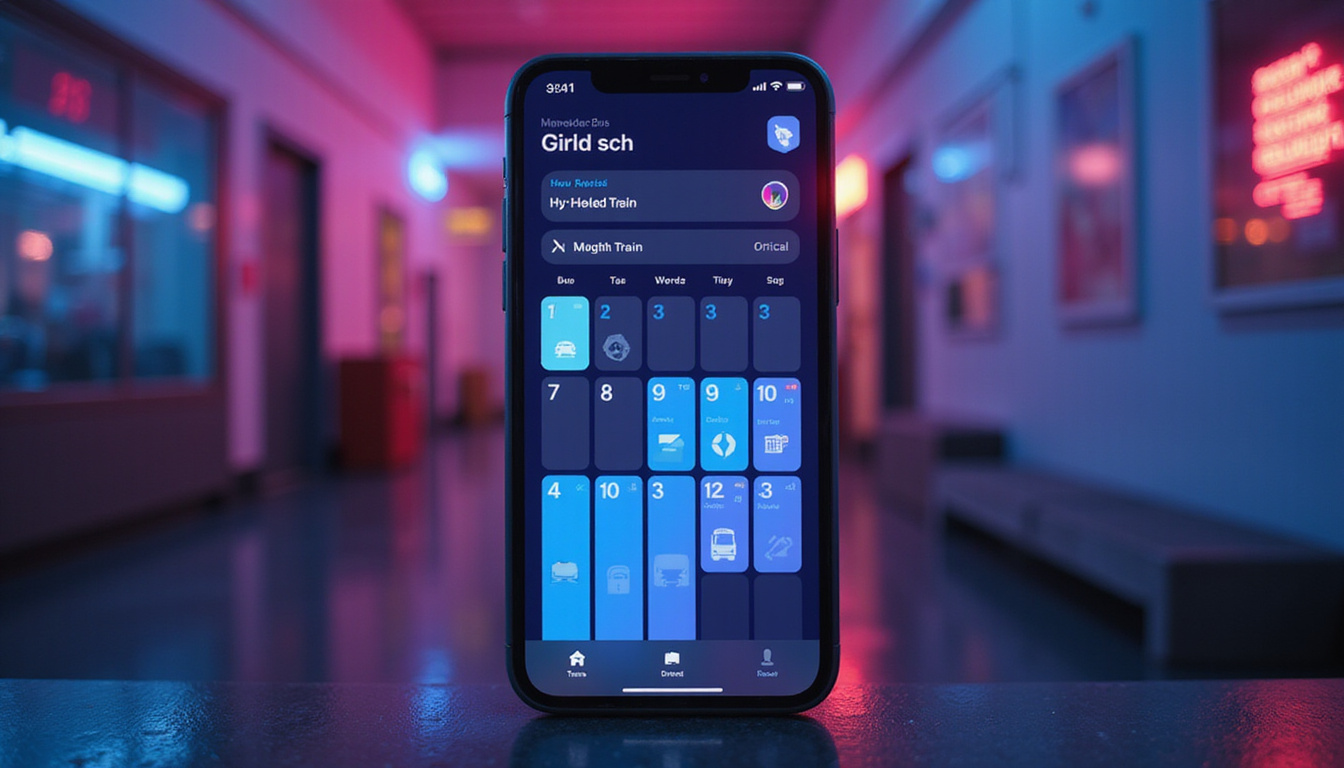
Step 1: Pick your primary calendar
Decide which calendar should be your “single source of truth.” Most people choose:
- Google Calendar if you’re in the Google ecosystem
- Outlook if your work uses Microsoft 365
- Apple Calendar if you’re deeply integrated into iOS/macOS
Make sure all your recurring events (work hours, classes, appointments) are centralized there.
Step 2: Add a transit planning app or integration
Look for an app or integration that:
- Supports your city’s transit system
- Can export journeys to your calendar
- Offers real-time updates and alerts
Common approaches include:
- Transit apps with “Add to calendar” or “Share to calendar” features
- Automation via tools like IFTTT or Zapier to create events based on your commute
- Agency-specific apps if your local transit authority provides one
Step 3: Map out your regular commutes
Create calendar events that represent the travel, not just the destination. For example:
- “Morning commute: home → office”
- “Evening commute: office → home”
- “Gym commute: office → gym”
Set them as recurring events on the days you typically travel. Then:
- Assign a location to each event: use exact station or stop names
- Set the event time as your required arrival time at the destination
- Let your transit tool back-calculate departure times using real-time info
Step 4: Configure alerts intelligently
Alerts are the heart of a good transit calendar. Consider:
- Primary reminder: 10–20 minutes before “leave by” time
- Backup reminder: 5 minutes before leave time for tight routes
- Heavy-disruption alerts: As soon as something affects your usual lines
Most apps let you tune:
- How early to warn you about disruptions
- Which routes/stations to monitor
- Quiet hours (e.g., no alerts overnight)
Step 5: Test for a week and adjust
Use this checklist after the first week:
- Were you notified early enough about delays?
- Did you get too many irrelevant alerts?
- Were any leave times unrealistically tight or overly cautious?
Then tweak:
- Default walking speed (some apps allow this)
- Buffer time before appointments (e.g., add 5 extra minutes)
- Which lines or stations to monitor more closely
Best practices to get the most from your transit calendar
Once your system is working, a few habits will keep it accurate and useful.
Keep event locations precise
Instead of vague entries like “downtown office,” use:
- Exact addresses
- Building names with full addresses
- Saved map locations for frequent destinations
This ensures walking times and transit choices are accurate.
Account for your personal patterns
Your transit calendar isn’t just about schedules; it should reflect you:
- If you walk slower or faster than average
- If you regularly stop for coffee en route
- If you prefer one line over another, even if it’s slightly slower
Some tools let you specify preferences like “fewer transfers” or “accessible routes only.”
Add buffer time for high-stakes events
For job interviews, medical appointments, or important meetings, manually:
- Set an earlier required arrival time in the event
- Add a “latest acceptable arrival” note in the description
- Mark those events as “high priority” in your mind and leave extra room
Example: A day with a smart transit calendar
Imagine a typical weekday with a well-setup transit calendar:
-
6:45 AM – You get a quiet notification:
“Red Line experiencing 10–15 minute delays. Suggest leaving at 7:35 instead of 7:45 to arrive by 8:30 AM.” -
7:30 AM – Your calendar ping says:
“Leave in 5 minutes. Walk 8 min to Elm Street, catch 7:46 bus, transfer to Red Line at Central.” -
4:45 PM – You see a meeting has been shifted from virtual to in-person across town. When you update the location in your calendar, your transit integration automatically recalculates the route and adjusts your leave time for the new commute.
-
8:10 PM – An alert appears:
“Service disruption at your usual station. Alternative route added to tomorrow morning’s commute event.”
Instead of scrambling, you know your next day is already adjusted.
Common mistakes when using a transit calendar
Avoid these pitfalls to keep your system reliable:
- Relying only on static schedules: Without real-time updates, you miss last-minute disruptions.
- Not updating locations: If your office moves floors or buildings, old addresses can skew travel times.
- Ignoring walking time: Setting arrival times as the start of a meeting but ignoring sign-in or elevator time can make you “technically on time” but practically late.
- Alert overload: Too many irrelevant alerts lead to ignoring the important ones; tune your filters.
FAQ: transit calendar and real-time commute optimization
Q1: What is a transit calendar app, and how is it different from a regular calendar?
A transit calendar app combines your personal schedule with public transit data, calculating leave times, routes, and delays automatically. Unlike a regular calendar that only shows when events start, a transit-aware calendar also tells you when to leave and alerts you when transit conditions change.
Q2: How can I use a public transit calendar for multiple cities?
Many tools that support a public transit calendar pull data from multiple agencies. If you commute in one city and travel frequently to another, ensure your app supports both regions. Create separate commute events for each location, and let the app switch data sources based on the event’s address.
Q3: Do real-time transit alerts work with shared or work calendars?
Yes, in most cases. You can connect real-time transit alerts to your primary work calendar (e.g., Outlook or Google Workspace). When meetings or shifts change, your real time transit calendar integrations re-calculate travel plans based on the updated schedule, ensuring your alerts match your actual commitments.
Turn your calendar into a commute assistant
A transit calendar does more than list where you need to be—it helps you get there efficiently, with less stress and fewer surprises. By blending your personal schedule with real-time transit data, you can:
- Cut down on late arrivals
- Spend less energy tracking disruptions
- Use waiting time more productively
- Build a commute routine that adapts automatically when things go wrong
If your current system is a patchwork of apps and guesswork, this is the moment to upgrade. Choose a transit-aware tool that integrates with your calendar, set up your regular commutes, and run it for one week. After just a few days of smoother departures and timely arrivals, you’ll wonder how you ever managed your commute without a transit calendar guiding the way.
Learn how astronomy, psychology, and spiritual traditions intersect by visiting SpiritualMindScience.com for deeper insights.