If you work in 3D, the humble vertex is where everything begins—every polygon, every edge, every sculpted detail. Understanding how to manage vertices efficiently is one of the fastest ways to clean up meshes, prevent shading artifacts, and significantly speed up your renders. This guide walks through practical, tool-agnostic tricks you can use in Blender, Maya, 3ds Max, Cinema 4D, Houdini, or almost any DCC that deals with vertices and meshes.
Why Vertices Matter More Than You Think
At its core, a 3D model is just a collection of vertices connected by edges and faces. How those vertices are placed, organized, and optimized directly affects:
- Mesh quality and deformation
- UVs and texturing
- Shading and normals
- Render time and memory use
- Rigging and animation performance
Messy vertex layouts lead to:
- Shading glitches and lighting artifacts
- Unnecessary high poly counts
- Sluggish viewports and longer renders
- Difficult UV unwrapping and texturing
Spending time managing vertex flow early often saves hours in cleanup, debugging, and rendering later.
Clean Topology Starts at the Vertex Level
1. Use Quads as Your Default
Quads (four-sided polygons) are easier to manage, subdivide, and deform.
Why it matters:
- Subdivision surfaces produce smoother, predictable results.
- Animations (especially facial or joint deformations) look cleaner.
- Retopology tools generally assume quad-based topology.
Actionable steps:
- Avoid long chains of triangles in deforming areas (elbows, knees, face).
- Reserve triangles for non-deforming areas or strategic poles.
- Use your app’s “Quadrangulate” or “Convert tris to quads” tools where appropriate, then manually tweak problem areas.
2. Eliminate Unused and Isolated Vertices
Isolated or stray vertices add nothing visually but can break tools, booleans, and modifiers.
How to clean them:
- Use “Remove Doubles / Merge by Distance” or equivalent to weld overlapping vertices.
- Select “Non-manifold” geometry and investigate: lone vertices, open edges, or broken faces.
- Run mesh cleanup tools and delete single-vertex “ghost” components that have no faces.
Result: A lighter mesh, fewer bugs with modifiers, and better shading.
3. Control Edge Flow Around Key Vertices
The path edges take through your vertices—your edge flow—controls how detail and deformation travel across the mesh.
Best practices:
- Route loops around high-deformation zones (eyes, mouth, shoulders, hips).
- Use edge loops to support silhouette changes and important forms.
- Terminate loops away from high-stress areas using poles (vertices with 5+ connecting edges).
Look at production topology from major films or games for reference. Sites like the Polycount Wiki and ArtStation breakdowns are excellent resources (source: https://polycount.com).
Quick Vertex-Level Mesh Fixes
4. Fix Shading Artifacts with Normal and Smoothing Tools
Shading issues often trace back to vertex normals or inconsistent smoothing groups.
Symptoms:
- Random dark/light patches on smooth surfaces
- Faceted shading where it should be smooth
- Hard seams between connected polygons
Vertex-based fixes:
- Recalculate normals (e.g., “Recalculate Outside”) to unify vertex normal directions.
- Assign proper smoothing groups / normal smoothing where appropriate.
- On game-res meshes, consider custom vertex normal editing (e.g., averaging normals along desired directions to keep hard edges where you need them).
5. Remove Ngons and Bad Poles Strategically
While some workflows tolerate ngons, they often cause subdiv or baking problems.
Target troublemakers:
- Ngons near bends or deformations
- Vertices with too many edges converging in a small area
- Ngons near sharp corners you’ll bevel or chamfer
Quick fixes:
- Add supporting edges to turn ngons into quads and controlled triangles.
- Slide vertices to space out poles away from high-stress areas.
- Use the “Spin Edge” / “Rotate Edge” tools to reroute edge flow.
6. Weld, Slide, and Relax Vertices for Smooth Surfaces
Small tweaks at the vertex level can eliminate subtle bumps and pinching.
- Weld / Merge: Combine close vertices to simplify geometry and remove micro-edges.
- Slide: Move vertices along existing edges to redistribute density without breaking surface flow.
- Relax / Smooth tooling: Average vertex positions to soften lumpy areas while trying to maintain the silhouette.
Use these tools lightly on hard-surface models and more freely on organic meshes.
Vertex Optimization to Speed Up Renders
Render speed is strongly influenced by how efficiently you use vertices and polygons.
7. Keep Vertex Counts Honest
More vertices mean more data for the renderer to process. Don’t use dense meshes where you don’t need them.
When to reduce:
- Flat or near-flat areas that won’t deform
- Background objects far from the camera
- Repeating assets (props, rocks, bolts, debris)
How to reduce safely:
- Use decimation/simplify tools, then manually clean up key areas.
- Bake high-res detail to normal, curvature, and displacement maps.
- Use LODs (Levels of Detail) in games or large scenes to render lower-vertex versions at distance.
8. Use Subdivision and Displacement Strategically
Subdivision and displacement are powerful—but costly—if misused.
Vertex-focused guidelines:
- Model a clean, low-to-mid poly cage with good vertex flow.
- Let subdivision add vertices only where necessary (controlled by loops).
- Use displacement or normal maps for micro-detail instead of pushing millions of base vertices.
- On render-time subdivision (e.g., in Arnold, V-Ray, Cycles), lower base mesh density: you want fewer base vertices but clean topology.
Proper balance gives you high visual quality with fewer vertices to manage.
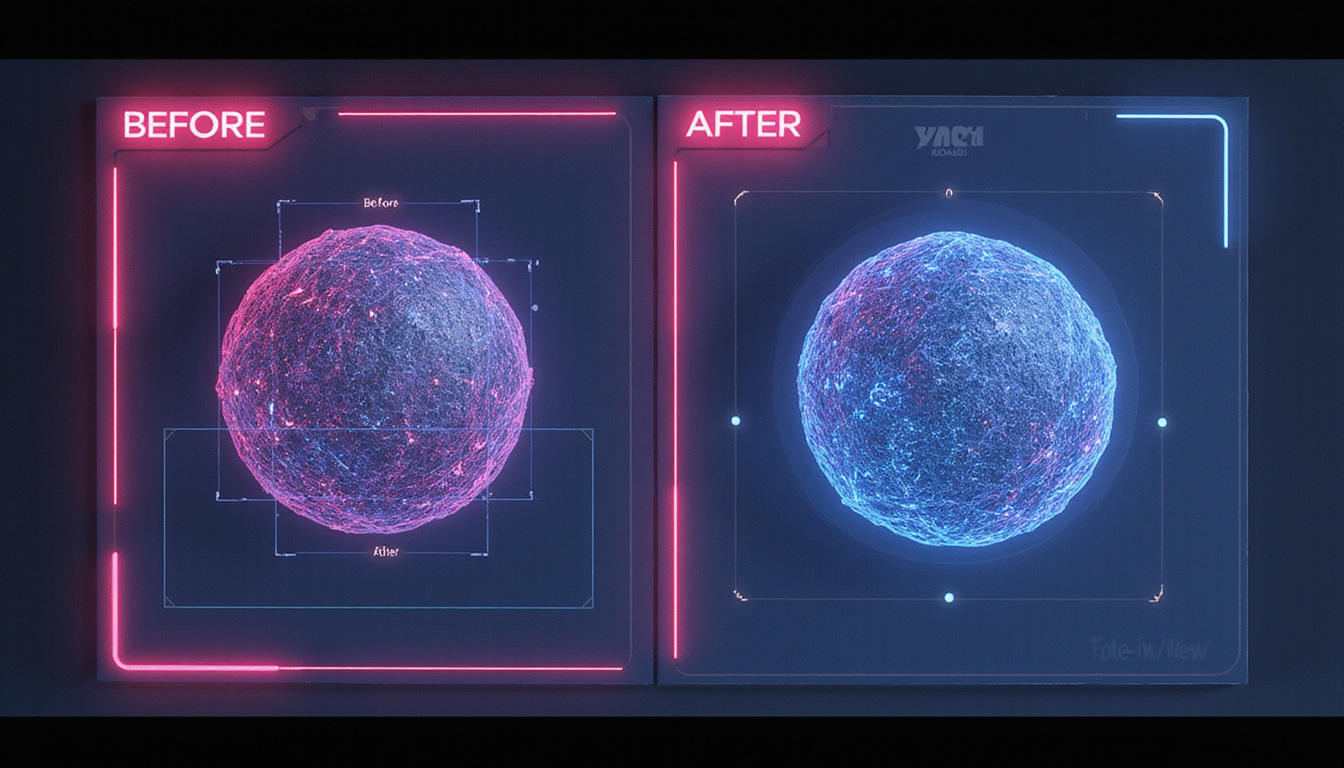
9. Instance and Reuse Vertex Layouts
Instancing is effectively “reusing” the same vertices multiple times with different transforms, which is far cheaper than duplicating meshes.
Good candidates for instancing:
- Vegetation (trees, bushes, grass patches)
- Modular environment pieces (walls, pillars, trim)
- Props (bolts, vents, street furniture)
By instancing, you keep a single source of truth for the vertex data while the renderer reuses it, greatly improving memory and render efficiency.
UVs, Vertices, and Clean Texture Results
10. Align UV Seams with Vertex Flow
UV issues often show up as visible seams or stretching, and much of that is governed at the vertex level.
Vertex-aware UV tips:
- Place UV seams along natural edges and sharp creases where vertex normals already break.
- Keep even spacing of vertices in UVs to avoid texture stretching.
- Use “Relax” / “Unfold” tools to even out UV distribution, then manually fix critical seams.
The closer your UV vertex spacing matches your 3D vertex spacing, the more consistent your textures will appear.
11. Support Baking with Clean Vertex Layouts
For normal and AO baking, vertex cleanliness is crucial.
- Avoid overlapping vertices that share UV space unintentionally.
- Make sure hard edges are split in UVs to prevent shading gradients from crossing.
- Double-check that mirrored or stacked UVs are intentional and use correct bake settings.
Most baking artifacts—wavy normals, seam lines—trace back to vertex normals, seam placement, or mismatched cage and target meshes.
Rigging and Deformation: Vertices That Behave
12. Place Extra Vertices Where Deformation Needs Support
Don’t waste vertices where they don’t contribute; put them where they’re needed.
Key spots:
- Joints (elbows, knees, shoulders, fingers, neck)
- Facial features (lips, eyelids, nasolabial folds, brows)
- Cloth bends (elbows of sleeves, knees of pants, waistlines)
Concentrate additional vertex loops to distribute deformation smoothly across a broader area, reducing texture stretching and skinning issues.
13. Skinning-Friendly Vertex Layout
Skin weights become easier to paint and produce better results if the vertex structure is logical.
Tips:
- Align edge loops perpendicular to the direction of bending.
- Avoid random “stair-step” vertex layouts near joints.
- When retopologizing scans or sculpts, prioritize clean vertex rings around the deformation axes.
This keeps skin weights simple and predictable, which saves countless hours later in animation.
Practical Checklist: A Fast Vertex Cleanup Routine
Use this simple checklist before you call a mesh “done” and send it to shading, rigging, or rendering:
- Remove duplicates and stray vertices.
- Fix obvious ngons, especially in deforming or subdivided areas.
- Recalculate and verify vertex normals; set smoothing groups.
- Check for even vertex spacing in critical areas (joints, facial features, reflective surfaces).
- Reduce vertex density where it does not improve silhouette or deformation.
- Ensure UV seams align with appropriate edges and normals.
- Test a quick subdivide or deformation to catch pinching or artifacts early.
Doing this consistently greatly reduces late-stage surprises.
FAQ: Vertex and Mesh Optimization
Q1: What is a vertex in 3D modeling, and why is it important?
A vertex is a single point in 3D space that serves as the fundamental building block of all meshes. Edges connect vertices, and faces are formed from those edges. The placement, density, and connectivity of each vertex determine how well a mesh deforms, how it shades under lights, how it unwraps for UVs, and how efficiently it renders.
Q2: How can I reduce vertex count without losing too much detail?
Start by identifying areas where the vertex density does not contribute to the silhouette or deformation. Use decimation or poly-reduction tools cautiously, then manually clean up important regions. Bake high-frequency detail into normal, displacement, and other maps instead of modeling every small feature with extra vertices.
Q3: Why do bad vertex normals cause shading artifacts?
Vertex normals tell the renderer how light should interact with the surface at each vertex. If those normals are flipped, inconsistent, or broken at seams, you’ll see hard edges, dark patches, or strange gradients. Recalculating normals, adjusting smoothing groups, and sometimes manually editing vertex normals can restore smooth, accurate shading.
Turn Vertex Mastery into Faster, Cleaner Renders
Every high-quality, production-ready model is built on a foundation of clean, well-managed vertices. When you understand how to place, remove, and refine each vertex, you gain control over:
- Mesh quality and deformation
- Texture and normal map fidelity
- Viewport performance and render times
- Rigging and animation reliability
Don’t leave these gains on the table. Open one of your current projects and run through the vertex cleanup checklist, fix a few problem meshes, and compare render times and shading before and after. Then, make vertex-level optimization a standard part of your workflow—you’ll see smoother pipelines, fewer bugs, and faster, more predictable renders on every project you touch.
This guide explored astrology and zodiac meanings. To discover the psychology, consciousness, and scientific perspectives behind spiritual beliefs, visit SpiritualMindScience.com.